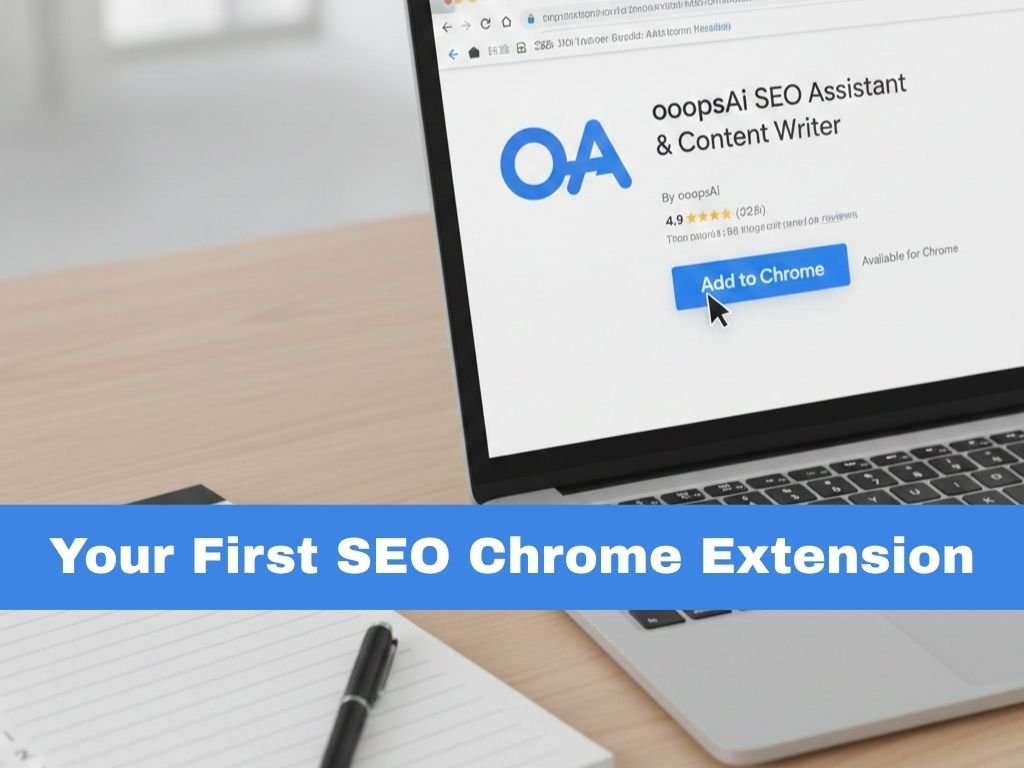
Do you want to see secret SEO details about any website? An SEO Chrome extension can show you. It is like giving your browser super powers. This guide will show you how to install your first SEO Chrome Extension. It is very easy. Even if you never did this before, you can do it. Let us start.
Why your first SEO Chrome Extension is a Game Changer
SEO is all about details. Small details make a big difference. An SEO extension shows you these details instantly. You can see what keywords a site uses. You can check their links. You can find issues on your own pages. This saves you hours of work. For freelancers and small teams, this tool is a powerful friend. It helps you work smarter, not harder.
What You Need Before You Start
You do not need much. First, you need the Google Chrome browser on your computer. This guide is for Chrome. Second, you need a Google account. You use this to sign in to Chrome. Make sure you are signed in. Last, know what you want the tool to do. Do you want to check page titles? Or find broken links? Knowing your goal helps later. Now you are ready.
Step 1: Find a Good SEO Extension in the Chrome Web Store
Open your Chrome browser. Look at the top right corner. You will see three small dots. Click on them. Go to “More tools” and then “Extensions.” This opens a new tab. Or, just go to the Chrome Web Store directly. You can search for “SEO extension” there. You will see many options. Look for extensions with high ratings. Read the reviews from 2026. Pick one that is simple for beginners. A great tool to start with is ooopsAi. It is user-friendly and powerful. Remember, the best tool is the one you will use.
Step 2: The Simple Click to Install
You found your extension. Now, install it. On the extension’s page, you will see a blue button. It says “Add to Chrome.” Click it. A small box will pop up. It asks for permission. It might say “Read data on websites you visit.” This is normal. The tool needs this to work. Click “Add extension.” Wait a moment. You will see a new icon near your address bar. A message will say “Added.” That is it. The installation is done.
Step 3: The Important Setup (Do Not Skip!)
The tool is installed but not ready. Click the new icon in your browser bar. A small window will open. Some tools ask you to sign up. Use your email. Some ask for an API key. Do not worry. An API key is like a special password. The tool’s website will tell you how to get a free one. Copy and paste it carefully. Now, find the settings. Look for “Default Country” or “Target Location.” Set this to your country. If your audience is in the USA, choose United States. This simple step is critical. It makes the data correct.
Step 4: Pin Your Tool So You Never Lose It
Your new icon might hide. See a puzzle piece icon in your top bar? Click it. A list drops down. Find your SEO tool’s name. Next to it, click the pin symbol. The pin will turn blue. Now your tool’s icon is always visible. This is very important. If it is hidden, you will forget it. A visible icon reminds you to use it on every site. Make it a habit.
Step 5: Test Your Tool on a Real Website
Let us make sure it works. Go to a website you know. Try a big site like BBC.com. Click your SEO extension icon. A panel should open. It might show you page speed, keywords, or links. Click different tabs inside the panel. Explore. Now go to your own website. Do the same. See what data appears. Do not worry if some numbers are confusing. The goal is to see it working. If data shows up, you did everything right.
Common Beginner Mistakes and How to Avoid Them

People often make small errors. I will tell you the big ones so you can avoid them. The first mistake is installing too many tools at once. Your browser will become slow. Start with one tool. Learn it well. Then think about another.
The second mistake is skipping the setup. They add the extension but never set the country or API key. Then the data is wrong. They blame the tool. Always do the setup steps.
The third mistake is ignoring updates. In 2026, tools update often. Updates fix problems and add new features. Let your extensions update automatically. This keeps them safe and smart.
Making the Tool Part of Your Daily Work
A tool is useless if you do not use it. Make it part of your routine. Before you write a blog post, check the top-ranking page with your tool. When you visit a competitor’s site, click the icon first. When you work on your own site, use it to find easy fixes.
This daily habit is powerful. You will learn more by doing this than by reading books. You will see patterns. You will understand what makes a page rank high. This is real knowledge.
When to Get Expert Help from TimeSolutionZ
A Chrome extension is a great helper. But it is just a tool. It shows you data. Knowing what to do with that data is a skill. Sometimes you need an expert.
If you have a business website, you might need more. You might need full SEO work. Or a better website design. This is where TimeSolutionZ services help. They are experts in on-page SEO, technical SEO, and guest posting. They have a top-rated profile on Upwork.
Investing in expert help can save you months of struggle. They can do the hard work while you focus on your business. Think about it when you are ready to grow.
Your Next Steps After Installation
You did the install. Good job. Now, learn one thing at a time. On Monday, learn what “Meta Description” means. On Tuesday, learn about “Header Tags.” Go slow.
Bookmark the help page for your tool. Join a free SEO group online. Practice every day. The more you use it, the easier it becomes.
Remember, every expert was once a beginner. You took the first step. That is the most important part. Keep going.
Final Thought: Your New SEO Power
You now have a new power. You can see hidden SEO details. This gives you an advantage. Use this power to make your website better. Use it to learn. Do not be afraid to click buttons and explore.
The world of SEO in 2026 is fast. Tools like these help you keep up. Keep your tools updated. Keep learning. Your journey is just beginning. Good luck.
FAQ‘s
How do I add an SEO extension to Chrome?
Go to the Chrome Web Store. Search for an SEO extension like “ooopsAi.” Click the “Add to Chrome” button. Confirm the pop-up. The extension will install automatically.
Is it free to install an SEO Chrome extension?
Many good SEO extensions have a free version. You can install and use basic features without paying. This is perfect for beginners who are learning.
I added the extension but it disappeared. What do I do?
Click the puzzle piece icon in Chrome’s top bar. Find your SEO extension in the list. Click the pin icon next to its name. This will keep the extension icon visible.
What is the best SEO Chrome extension for a beginner in 2026?
For beginners, a simple and clear tool is best. Look for extensions with high ratings and easy menus. Many users find ooopsAi to be a great starting point because it is easy to use.
Why is my SEO extension not showing any data?
You may need to complete the setup. Click the extension icon and look for “Settings.” Make sure you entered an API key if required. Also, set your correct target country for accurate data.
Can installing too many extensions slow down Chrome?
Yes. Each extension uses memory. If you install many extensions, your browser can become slow. It is smart to only install the tools you really need and use.